You can make a backup of your DirectAdmin account and download it.
How to Generate a Backup of Your Account in DirectAdmin
1. Log in to your DirectAdmin account.
2. In the Advanced Features section, click Backup and Restore. Alternatively, type Backup inSearch for pages, and the option will appear. Click on it.
3. Under Backup and Restore, check-mark options you wish to include in your Backup.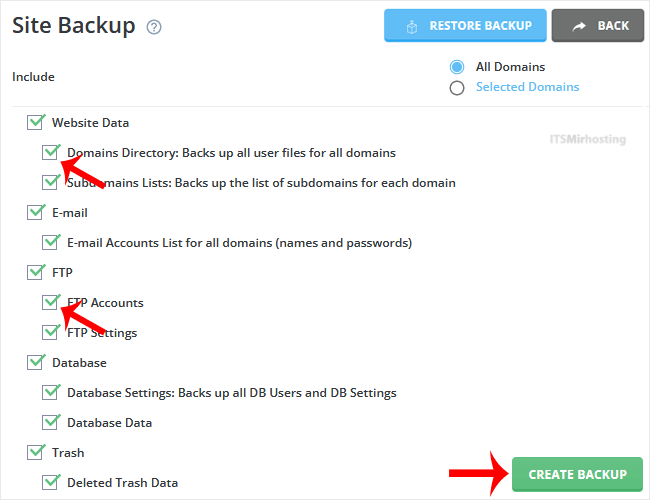
4. Scroll down to the end of the page and click on Backup.
5. It will display a success message such as Backup creation added to the queue. Once the backup is generated, it shows a message in DirectAdmin Panel >> Support & Help Section >> Support Center.
How to Download a Generated Backup of Your Account
1. Log in to your DirectAdmin Account.
2. In the System Info & Files section, click on File Manager. Alternatively, type File Manager in Search for pages, and the option will appear. Click on it.
3. Open the backups directory.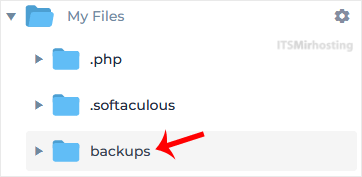
4. Right-click on your newly-generated backup file, and choose Download from the Context Menu. The file will be downloaded to your computer.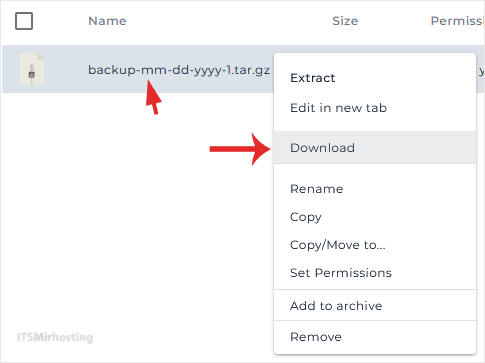
Congratulations, you have successfully generated a backup and downloaded it.