You can use CloudLinux Selector to enable or disable available PHP extensions in DirectAdmin.
1. Log in to your DirectAdmin account.
2. In the Extra Features section, click on Select PHP version or type Select PHP inSearch for pages. The option will appear. Click on it.

3.Under the Account Global Settings, go to the Extensionstab.
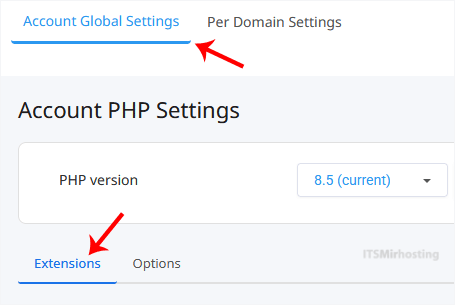
Note: If it shows an error related to the Native PHP version, change to a non-Native PHP version first.
4. To enable the extension, checkmark the option you want to enable. Uncheck it if you want to disable it.
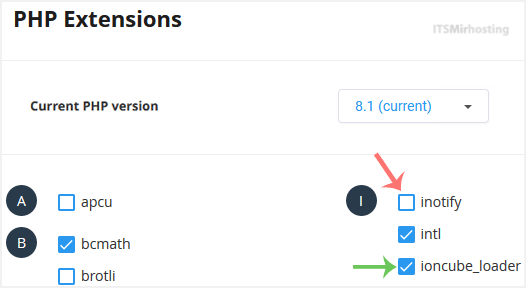
The message will show if the module is enabled or disabled.
Note: This tutorial covers enabling or disabling the module on all domains. To enable or disable it for an individual domain, go to Per Domain Settings, click on the Per Domain option, and then check or uncheck the module for the domain you wish to modify.
You have successfully enabled or disabled PHP extensions using the CloudLinux Selector in DirectAdmin.