You can use CloudLinux's Select PHP Version to change your website's PHP Version. CloudLinux provides various PHP Versions to choose from.
1. Log in to your cPanel account.
2. In the Software section, click on Select PHP Version.
For Single Domain or All Domains:
If you have one domain, use this method. If you have multiple domains, changing the version in Global Settings will update the PHP version for all domains.
1. Under Account Global Settings, choose your PHP version from the drop-down menu next to PHP version.
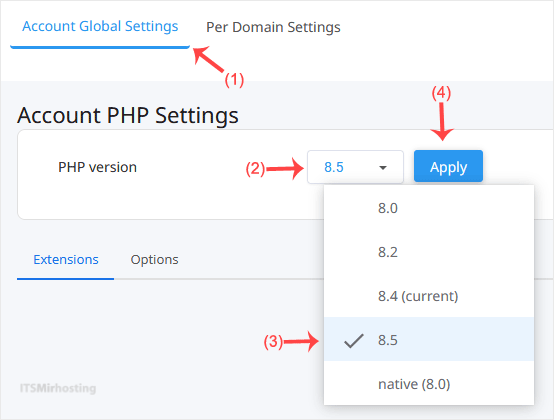
2. ClickApply.
For Per Domain:
This method is used to change the PHP version per domain, but it cannot be used if you have only one domain. .
1. Click on thePer Domain Settingstab.
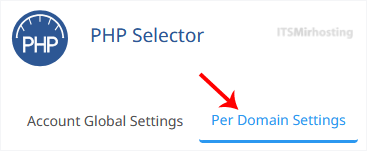
2. In the PHP column next to your domain, click the drop-down menu and select the PHP version you want to use.

You have successfully changed your PHP version using the CloudLinux Selector in cPanel.